


How to search Rep Inbox in REP AI by words, customer or ticket
Rep Inbox search in REP AI finds conversations by the words in the messages, customers by name, email or phone, and tickets by number. Use the search box in the Rep Inbox left rail; it looks across every status by default, closed conversations included, and finds an order number only if someone wrote it in the conversation.
Chapters
Transcript
Search the message text
Search reads the messages themselves, and every word you type has to be there. So each result shows the line where it was said with your words marked. It looks across every status by default, closed conversations included, because the one you're after is usually already finished.
Find a customer
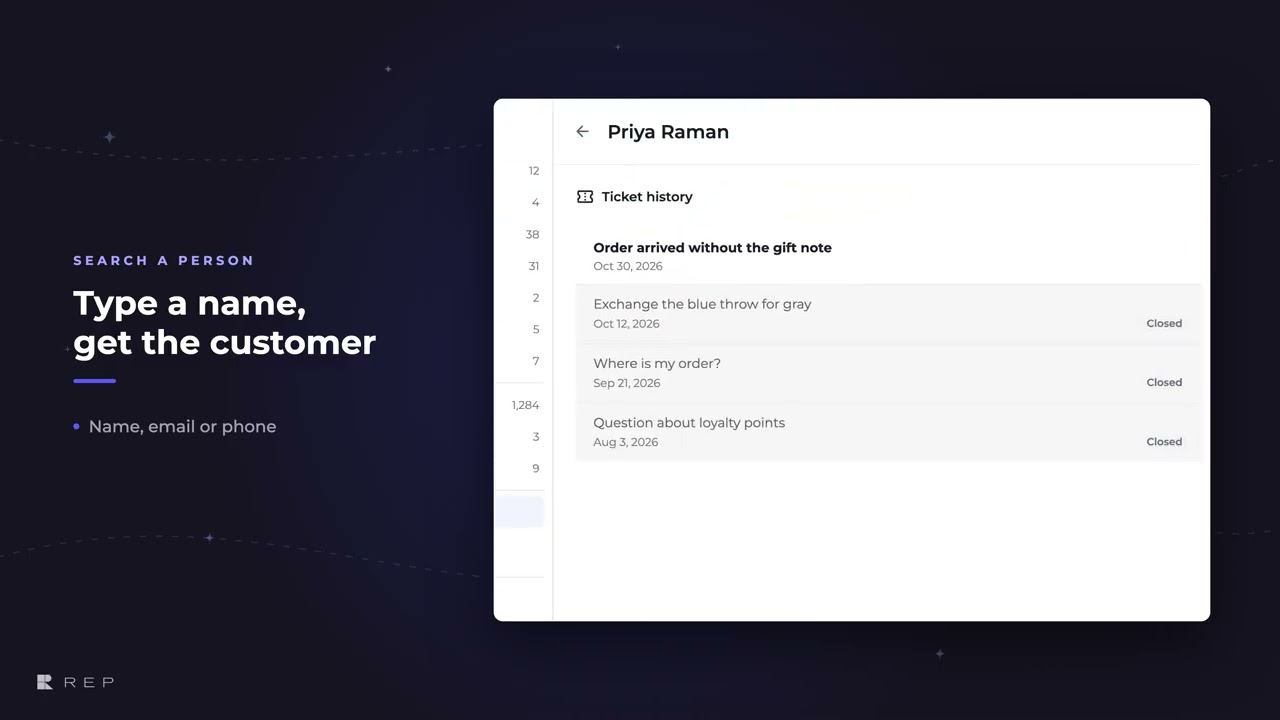
A name, an email, or a phone number brings up matching customers as you type, each with a ticket count, and one pick opens that person's whole history.
Open a ticket by number
A ticket number skips the list and opens that conversation right where it lives, a closed one under closed. And a number with no ticket behind it simply turns into a search.
Common questions
Can I search closed tickets in Rep Inbox?
Yes. Search looks across every status by default, closed conversations included.
How do I find every ticket from one customer in Rep Inbox?
Type their name, email or phone number in the search box in the left rail, pick the customer, and their whole ticket history opens.
Can I search Rep Inbox by order number?
Only if someone wrote the order number in the conversation; a ticket number, though, jumps straight to that ticket.
See it working on your own store.

