REP AI + PDQ integration
REP AI reads PDQ fulfillment data when shoppers ask "where is my order?" in chat. They'll hear the real stage, like verified, batched or shipped, instead of "unfulfilled".


PDQ handles your order fulfillment. Once it's connected, REP AI checks PDQ after pulling the order from Shopify, so your answers show what PDQ has already verified, batched or shipped.
Order status, straight from fulfillment
"Where is my order?": REP AI finds the order in Shopify, checks PDQ, and replies "Your order has been assigned to a batch and is being prepared for shipping."


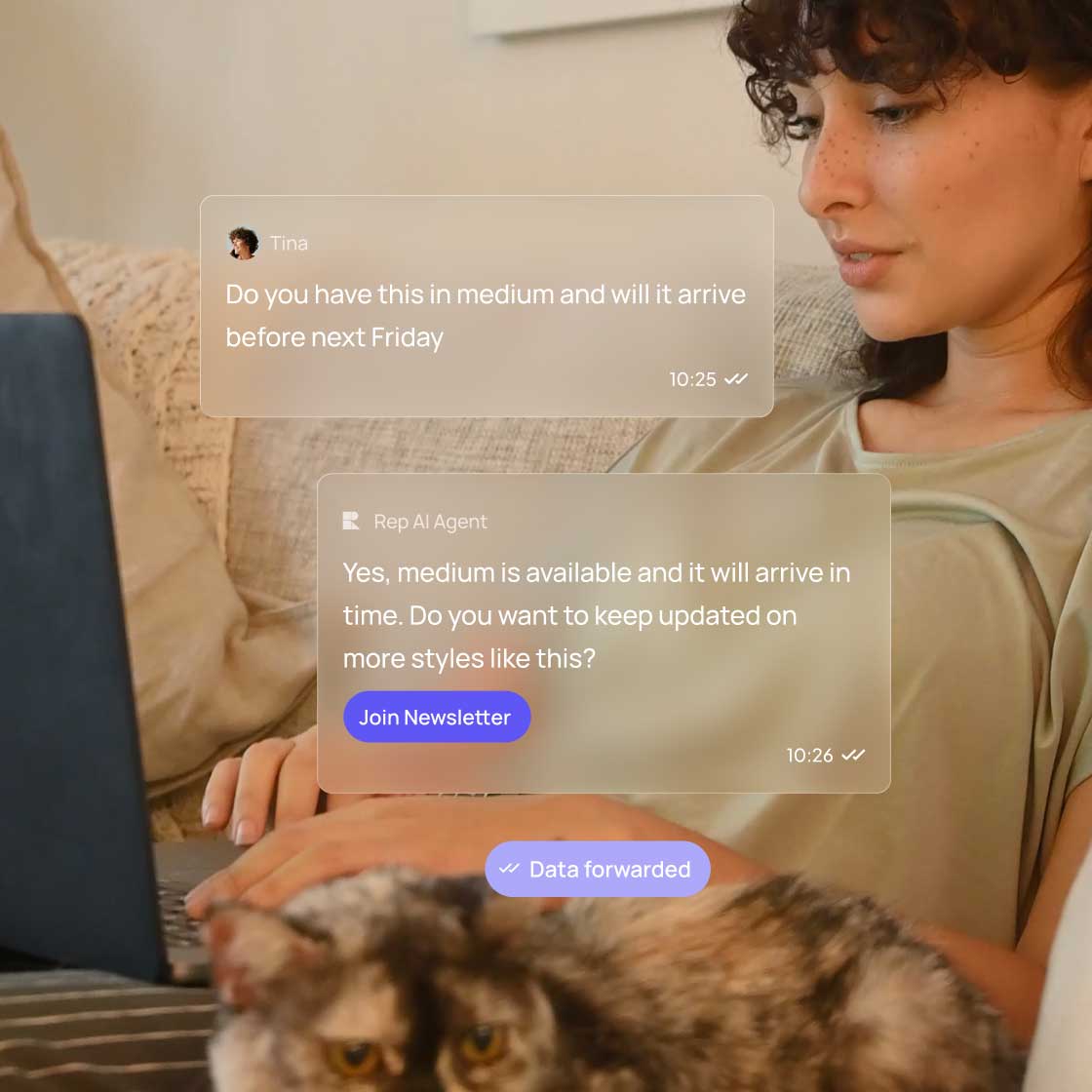
How It Works
Here is what happens from the first message to the moment your team takes over.
Enter your PDQ Merchant Key on the Shipping tab in Integrations
PDQ data is used from the very next customer inquiry
REP AI gets the order from Shopify, then checks PDQ
The shopper gets the PDQ stage or live carrier tracking
Use Cases


You'll see fewer "where is my order?" escalations reach your team.
Orders still being verified or batched get a real status, not "unfulfilled".
Shipped orders get the carrier name, tracking number and a tracking link.
If PDQ's briefly unavailable, REP AI uses Shopify data, so shoppers still get an answer.
Give shoppers the real order status
Connect PDQ and start your 14-day free trial, no credit card required.

Got questions?

You'll need an active PDQ account with API access, your PDQ Merchant Key, and a REP AI plan with WISMO (order tracking) support enabled. Can't find the key? Look in your PDQ dashboard under account settings or the API section.
In your REP AI Console, go to Settings, then Integrations, and select the Shipping tab. Click Connect on the PDQ card, enter your Merchant Key and click Connect. You'll see a green "Connected" badge.
Tracking shows up once PDQ marks the order as shipped with a carrier. Until then, REP AI shares the more detailed preparation status instead.